Logging in on Saga and NIRD
Saga is the computing cluster that is frequently used for bioinformatics and other activities at the Institute.
NIRD is a high capacity storage facility that is connected to Saga.
Computer names
Saga: saga.sigma2.no
NIRD: login-trd.nird.sigma2.no
First time users
Apply for access
If you are a first time user of the cluster, you need to apply to get access to it.
Use Feide user names if you have it. If not: create your own 7-8 letter username from your first and last name. We want to be able to tell who is who, that is not doable from VI usernames.
Organization is Veterinærinstituttet.
Project is nn9305k
Resource is Saga.
Your account will be approved by Sigma2 within a day or two, and then the allocation managers here at NVI are notified. The allocation manager(s) then approve your access. You will then have to set your password. Use the instructions in the link below to do that. NOTE: do not reuse either UiO or Vetinst passwords for your Saga account!
If you are confused regarding passwords, this link will guide you on that
Setting up your account for working on saga
There are a few settings we need to change to ensure that we all get a good working experience on saga.
The instructions are to be found in this file:
/cluster/projects/nn9305k/samplefiles/new_user.txt
Please do what is in that file, before doing anything else on the cluster.
How to log in to Saga
Once you have your username and password, you need to log into Saga. To do that, you need to access something that is called a terminal. A terminal is a window into which you can type commands. There are three main ways to get to a terminal window:
Use the program putty (not recommended)
Use the program called
git bash(recommended)Use the Windows Subsystem for Linux (recommended for advanced users
Have a virtual machine (vm) on which you have linux, which has a terminal (other parts of this documentation contains information about this)
Install the NVI Linux installation to install Linux on your laptop (recommended for people who want to try Linux)
If you want to use putty
Download putty from here
You are looking for the 64-bit x86 version
If you got the local priviledges you can install it on your PC
otherwise use the self-service for software
Hit the windows button on your keyboard (to the left of the spacebar) and type in
puttyClick on the presented icon on the start menu
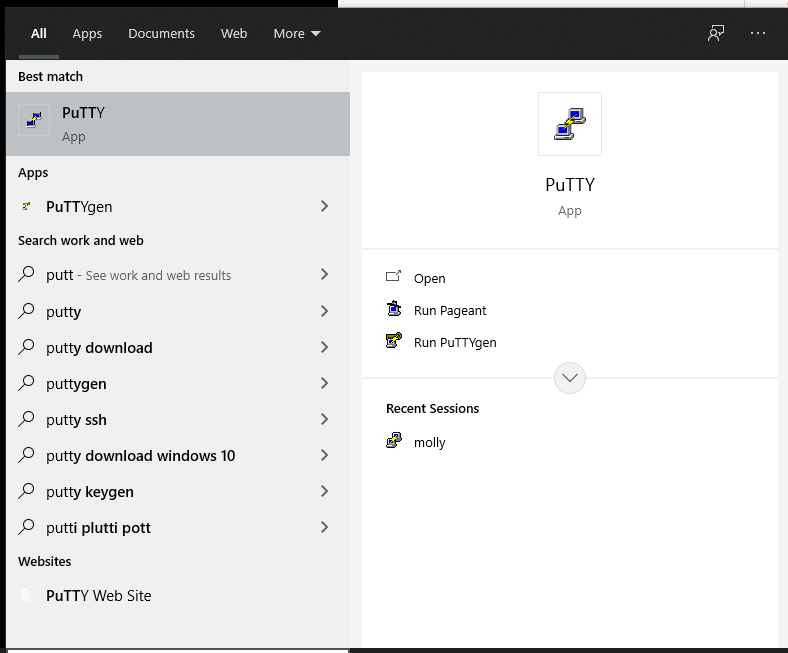
When PuTTY starts, type
saga.sigma2.noin the textbox where it says “Host Name or IP address”.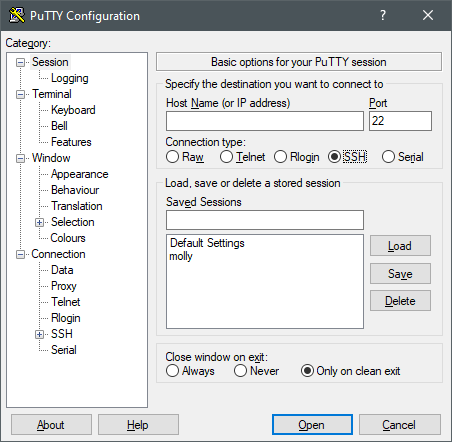
If you use git bash
Open git bash
Type in the following command on the command line that appears:
ssh saga.sigma2.no
If you want to use the Windows Subsystem for Linux
Have IT install it for you
Ask IT to also install the Windows Terminal
Click on the Windows Terminal Icon

Type in the following command on the command line that appears:
ssh saga.sigma2.no
If you want to use a Linux Virtual machine
TBA
If you want to use the NVI Linux
Contact IT to help you
In all cases are now using a program that is called ssh to create a connection through
the internet between your computer and Saga. This program is intended to emulate an old
typewriter on a graphical environment. All the processing you will do in Saga is text.
Once you have typed in your password, you will now be on Saga. Anything you type in on the command line now will happen on Saga.
If you are tired of typing your password
There are ways to connect to saga without typing a password, using ssh-keys. You can read about that in the section for the [Using ssh keys](Using ssh keys)